• Hi all and welcome to TheWoodHaven2 brought into the 21st Century, kicking and screaming! We all have Alasdair to thank for the vast bulk of the heavy lifting to get us here, no more so than me because he's taken away a huge burden of responsibility from my shoulders and brought us to this new shiny home, with all your previous content (hopefully) still intact! Please peruse and feed back. There is still plenty to do, like changing the colour scheme, adding the banner graphic, tweaking the odd setting here and there so I have added a new thread in the 'Technical Issues, Bugs and Feature Requests' forum for you to add any issues you find, any missing settings or just anything you'd like to see added/removed from the feature set that Xenforo offers. We will get to everything over the coming weeks so please be patient, but add anything at all to the thread I mention above and we promise to get to them over the next few days/weeks/months. In the meantime, please enjoy!

Picture Posting Guide

9fingers

Moderator
Staff member
Joined
Jul 21, 2014
Messages
10,414
Reaction score
165
Location
Romsey Hampshire between Southampton and the New F
This is not meant to offer exhaustive coverage but will describe one method that during testing has been shown to work with most common platforms. Namely
Android, iPhone, Windows, Mac and iPad.
The process is two stage, firstly use the forum software to up load your pictures and secondly enter them in your text in the message box. Failing to do the second stage just leaves thumbnail in a pile at the bottom of the post as it did with the old software.
You can upload multiple photos in one operation or just one at a time up to you to choose.

step 1 press the attach files button see screen shot below
This will open up the files selection tool on your device. Select the photo(s) that you want to upload and select open or double click or what ever selection mode you are used to.
The following thumbnail will appear ( I only selected one photo) this time
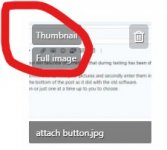
thumnail insertion.jpg

Once loaded it will appear in the text like this
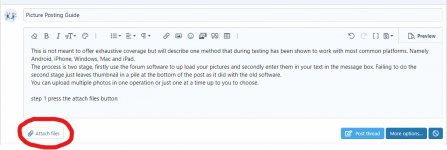
attach button.jpg
And you can continue with your text entry as you wish.

The next example shows multiple photo up loads
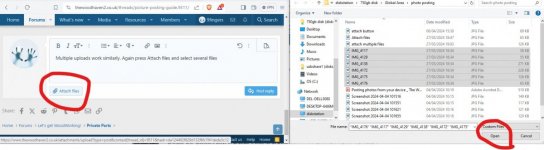
 
Multiple uploads work similarly. Again press Attach files and select several files

multiplefiles.jpg

Now you will see the multiple thumbnails below the message box ready to be inserted in any order you wish.

multiple thumbnails.jpg
As before you have the option of inserting the thumbnail in your post which readers can expand if they wish. This makes the post quicker to load for everyone and is preferred like this.

first cartoon

IMG_4117.JPG


Next cartoon (from anywhere in the bottom row)
IMG_4138.JPG
and so on
IMG_4172.JPG

awful aren't they?
IMG_4176.JPG IMG_4175.JPG IMG_4129.JPG

If there are some you decide not to use then simple click on the dust bin to remove them otherwise they will remain untidily at the bottom of the post.
 
The alternative, which might suit people doing longer posts with lots of photos mixed in with text, is to host the photos elsewhere, and then post the URLs into your post at the appropriate location. There are a number of commercial hosts such as Flickr and Photobucket, but I use Imgur, so the examples I give will be from there.

Imgur have added a step to the process, so you now have to start by clicking "New Post":

1712426542659.png

After that, you can just drag and drop photos from your folder on your PC/ laptop into the photo uploader. If you do more than 50 it will pop up a Captcha thing to check you're human.

1712426663909.png

When you've loaded all your photos, perversly, you need to Delete your post:

1712426774659.png

You then click on your user name, and then "Images", and you find yourself in your gallery:

1712426875685.png

Click on the picture you want, and this pops up:

1712426963328.png

Click on the blue "Copy" button, 2nd up from the bottom, to get your BBCode (message boards and forums), and then navigate to your post on Woodhaven 2, and right-click paste into your post at the appropriate location:

rB6SQ2D.png

What you actually see when you paste is like the following, but I've removed the first bracket to disable the URL:

img]https://i.imgur.com/rB6SQ2D.jpg[/img]

Then you can go back to Imgur, and just click the left or right arrows on the image you've just copied, to get to the next one you want. Rinse and repeat as often as necessary (limited to 20 images per post on this forum, though).

Obviously, that's a bit of a palavar if you've only one or two images to post, but if you have half a dozen or more it is a whole lot quicker and more convenient that dragging and dropping because of the WYSIWYG arrangements in the Reply box.
 
On XenForo, you can just paste images inline.

Open it in your image editor of choice (I use paint.net), crop & resize as required, then select-all, copy.

Then just paste it in-line (e.g. Ctrl-V on Windows) when you're typing and it'll get uploaded & inserted in one go.

That puts it in the forum storage so not subject to other websites.
 
What is the preference here? Do you prefer off-site hosting, like Mike G does, or rather upload to the forum?
 
First try at uploading a pic:

IMG_2635.jpeg

Easter weekend just passed and the 'Tim Tam Slam' (don't ask:rolleyes:) - Rob
 
In theory the server is now sitting on virtualised hosting with no disk space limit! Not actually tested that with the hosting company yet but we run hundreds of client websites on our hosting and many are tiny so I am sure it averages out… we currently have about 6.7gb of photos on here…

I would say that the biggest consideration is how it looks and loads for others using it who may not have so fast a connection so where possible it is better to use thumbnails and minimise graphic sizes just to help page load speed…
 
There is an "Insert Image" icon above when compiling a reply. 1712482702041.png
Point to the spot in text and use the icon to upload. Drag and drop.

I resize all my fotos of Mb++ using Outlook mail attach and select smallest size and then copy from the e-mail and save back to a different temp folder for uploading. Once uploaded clear the temp folder.

Old forum used to also re-size fotos. Can new forum do that?
 
Back
Top